 Pillmo
User guide
How to use Pillmo
From adding a medicine to reminders, records and looking after family, step by step with screenshots.
1. Add a medicine
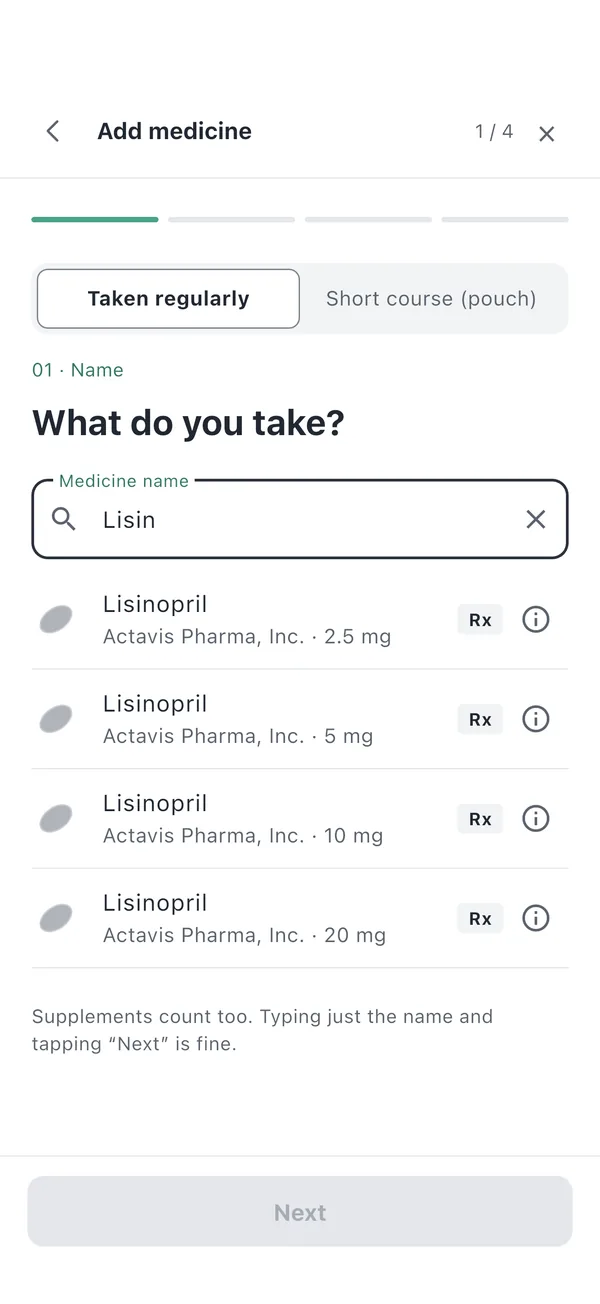
Go to Medicine › Add medicine and type the first few letters of its name. Results come from the U.S. FDA medicine directory, with the maker and strength so you can pick the right one.
- You can also find it with the barcode on the box or a photo of the label. Photos are read on your phone only.
- For a medicine or supplement that doesn't come up, just type the name and tap Next.
- Choose how many times a day, and times like morning and evening fill in for you. You can change them any time.
- If your prescription changes the dose, add a dose period. Past periods stay in your record.
2. Get reminded and check off
When it's time, you get a reminder. Press and hold it to choose [Taken], [In 10 min] or [Skip] without opening the app. If you don't check it off, we remind you once more.
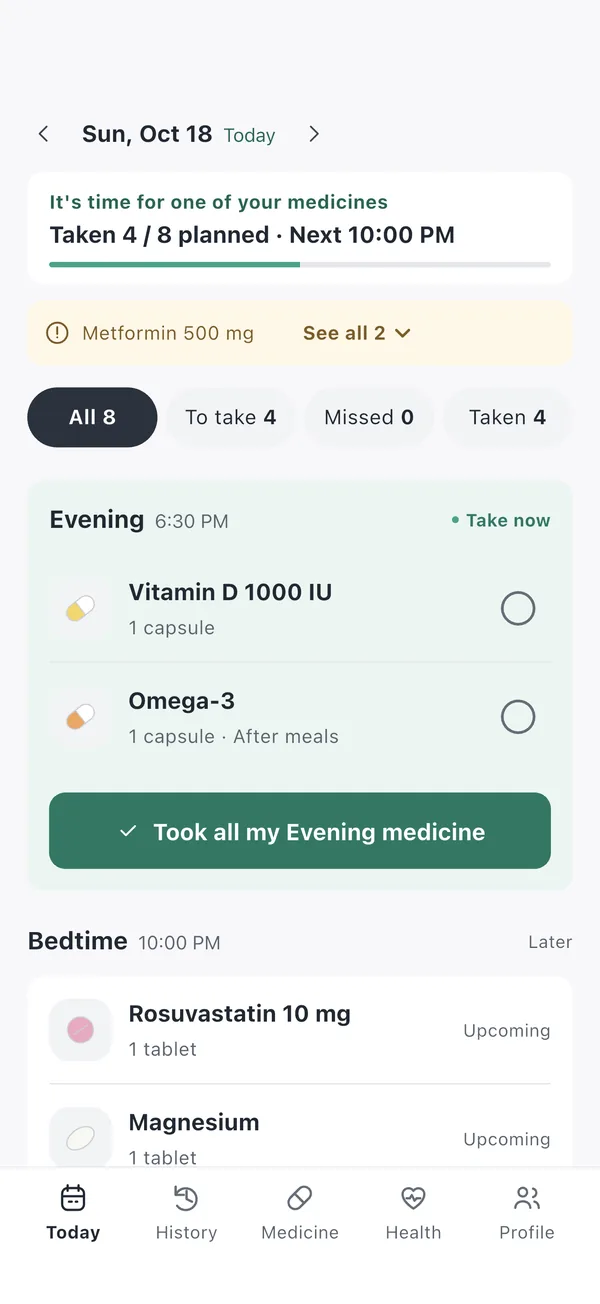
The Today tab shows what's due now at the top. You can check off a whole time of day at once, for example “Took all my Evening medicine”.
- Android: turn on “Ring like an alarm” in Settings › Reminders to get a full-screen alarm.
- iPhone: medicine reminders are Time Sensitive, so they come through during a Focus.
- If reminders don't arrive, Settings › Reminder check finds the cause and helps you fix it.
3. Records and health readings
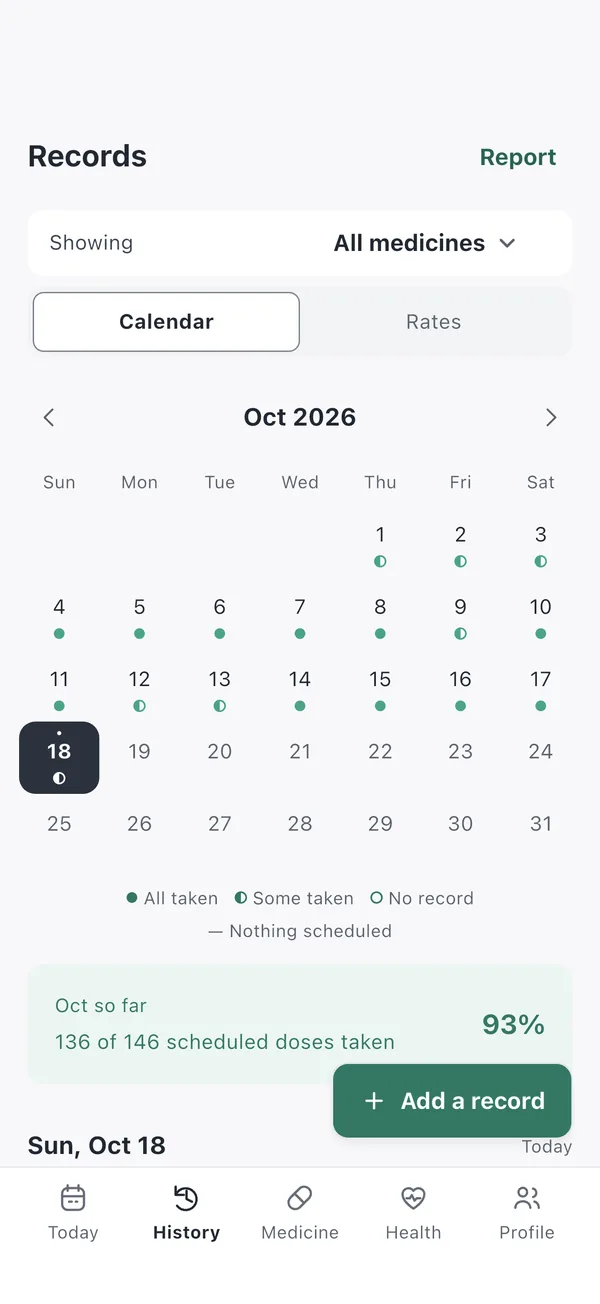
The calendar in the History tab shows a dot for each day. The Rates view shows how well you kept up with each medicine and which days you missed. If you forgot to log a dose, add it later with [+ Add a record].
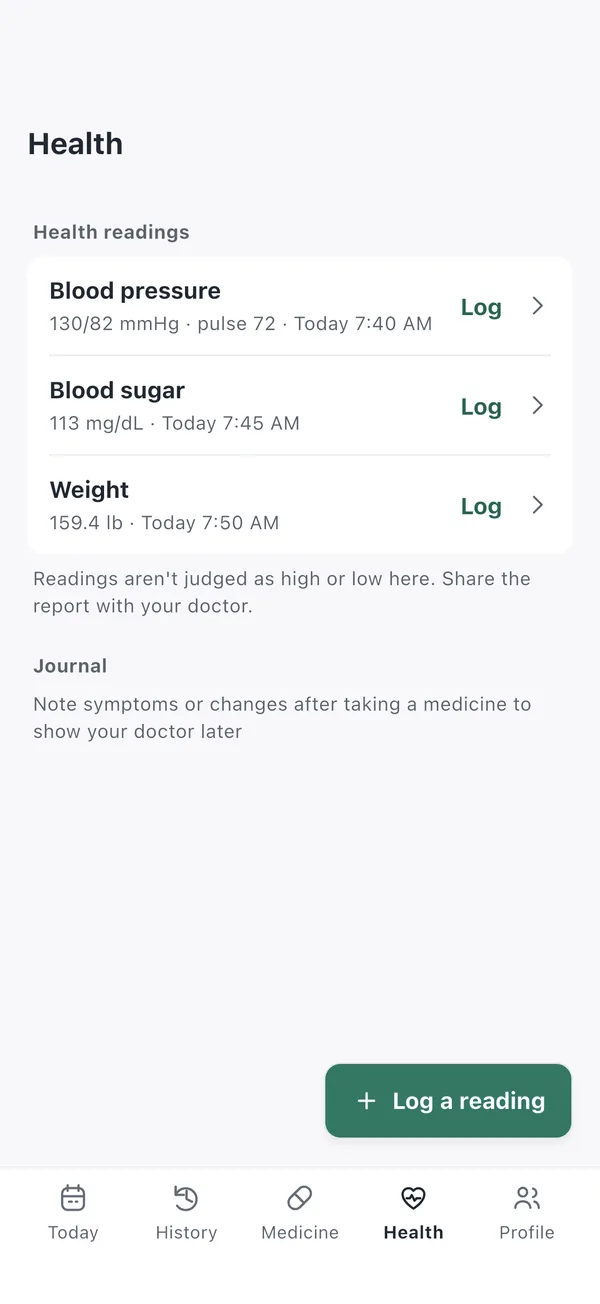
In the Health tab, log blood pressure and pulse, blood sugar and weight, and see 7, 30 and 90-day charts. Keep symptoms, mood or changes after a medicine in the Journal.
Pillmo doesn't judge your readings. If a reading worries you, talk to your doctor or pharmacist.
4. Refills and reports
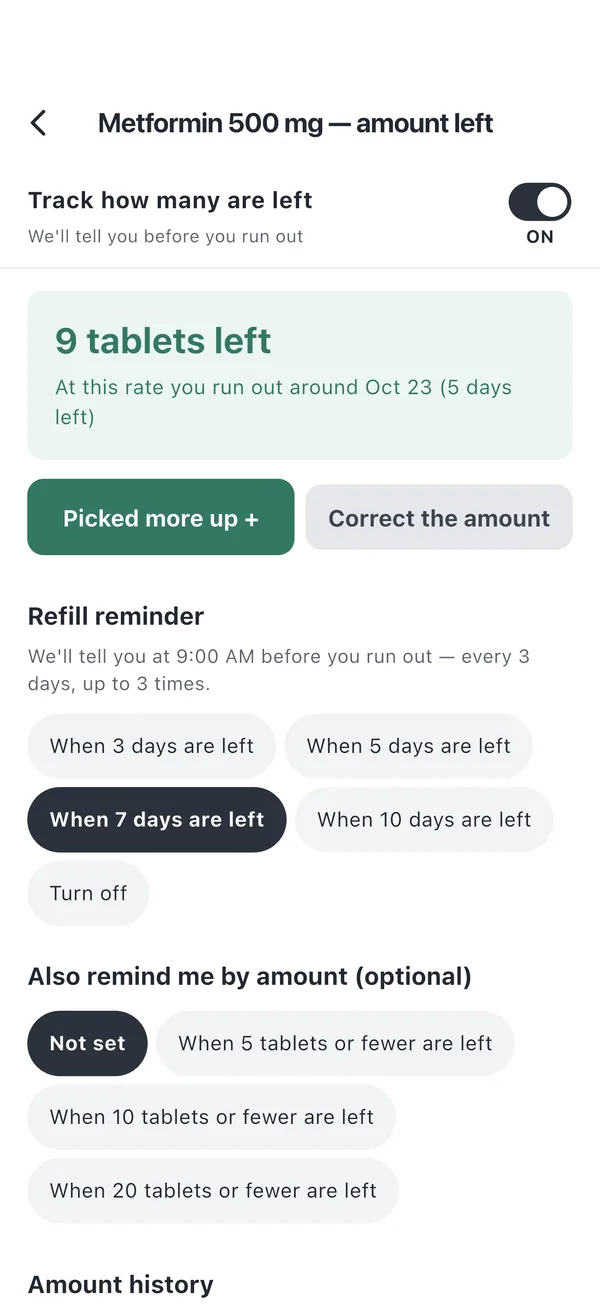
Turn on Track how many are left for a medicine and enter how many you have. The count goes down with each dose, and a refill reminder comes a few days before you run out. When you get more, add them with [Picked more up +].
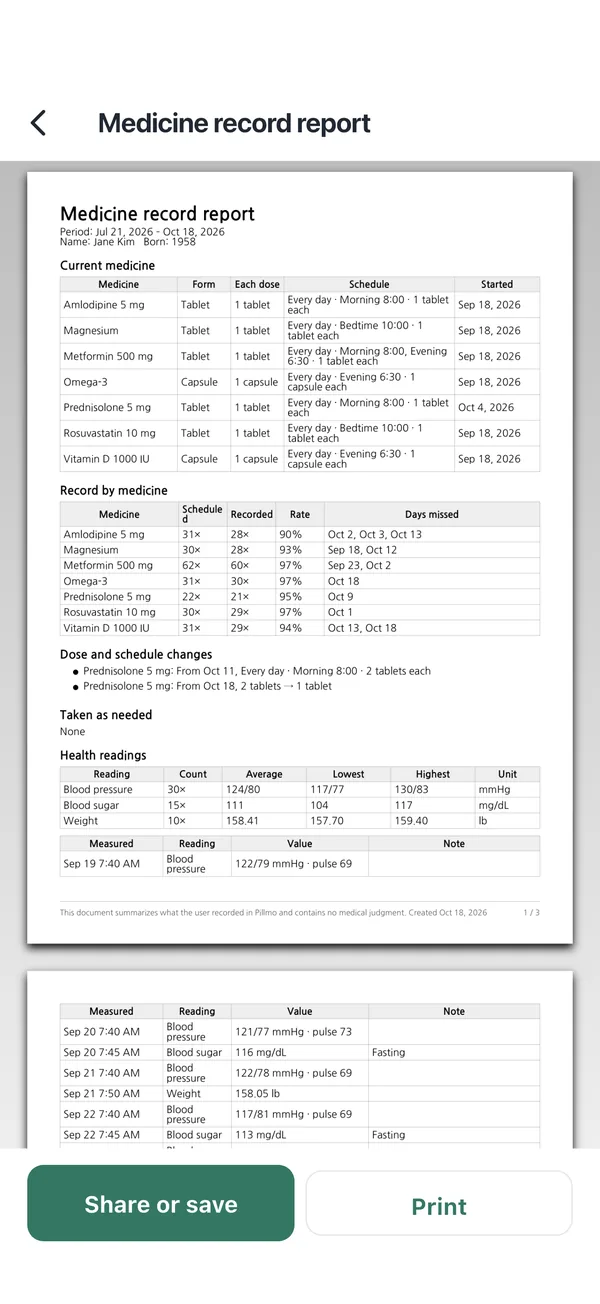
Make a medicine report as a PDF to show at your appointment. Pick a period and medicines, and your current medicines, rates and missed days for each, dose changes and health readings go into one document. Share or print it right away.
5. Using Family
Set up your parents' medicine from your phone, see whether they've taken it, and remind them once more if they forgot. Take it one step at a time.
Before you start
- Family is Android only. The iPhone app doesn't have it yet.
- It comes with Pillmo Premium, a monthly or yearly subscription in Google Play. Only the person who subscribes pays; connected family don't.
- Up to 6 people including you. Subscribing removes ads too.
Three ways to connect
- Look after them
- Pillmo goes on their phone, and you set up the medicine and reminders. The alarm rings on their phone, and when they tap [Taken], you see it. Works well for parents.
- Share with each other
- Each of you manages your own medicine, and you only see whether today's doses are done. Good for a spouse or siblings.
- I check them off
- No second phone needed. You manage everything on your phone, reminders ring on your phone, and there's no invite code. You can connect their phone later at any time.
If you're inviting
-
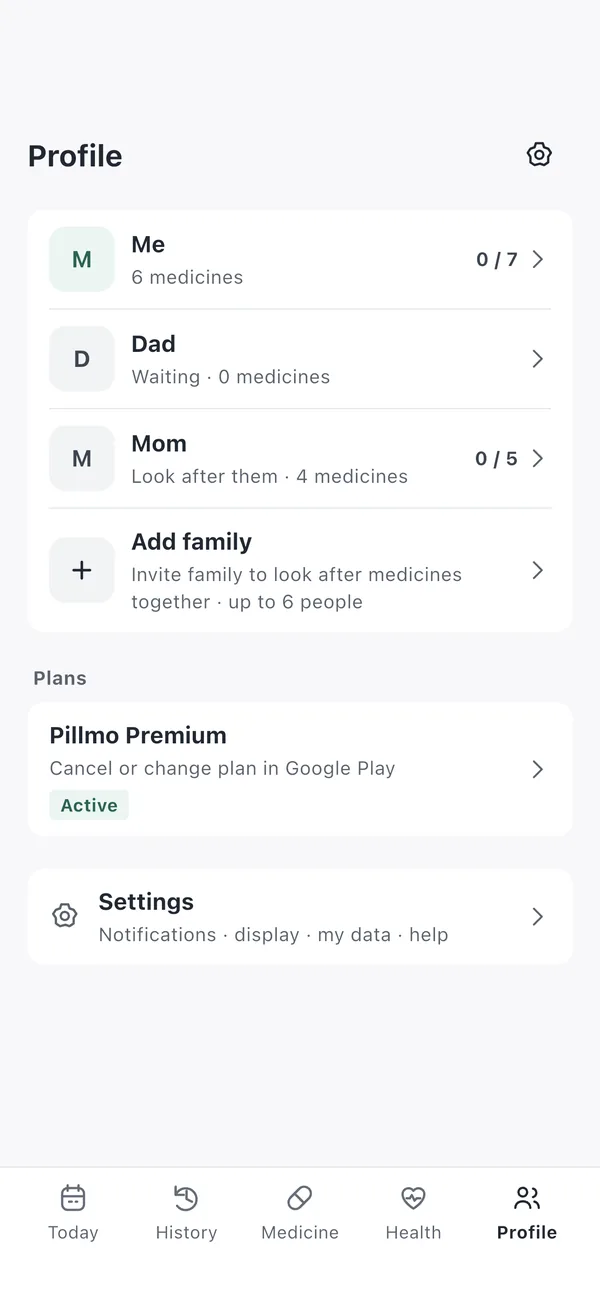
Tap “Add family” on the Profile tab
Open Profile, the last tab at the bottom, and tap Add family. If you haven't subscribed yet, you'll see Pillmo Premium first. Choose yearly or monthly, and you'll go straight on to the next step.
-
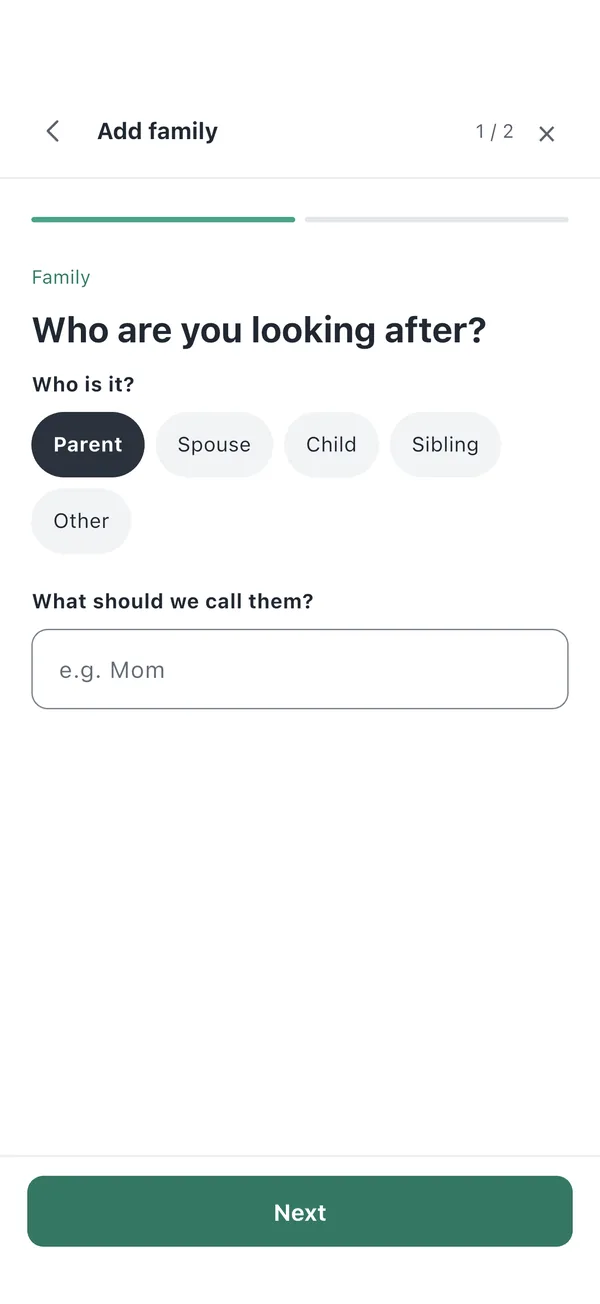
Choose who you're looking after
Pick who it is (Parent, Spouse, Child, Sibling or Other) and enter what to call them in the app, such as Mom or Dad. Then tap [Next].
-
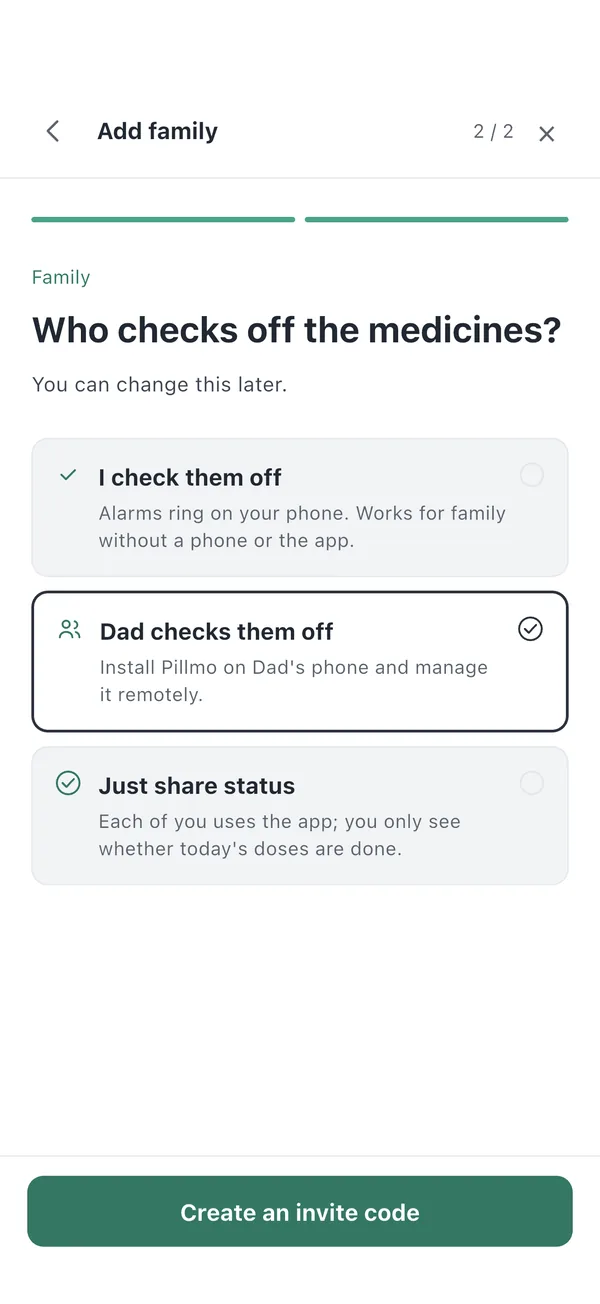
Choose who checks off the medicines
Pick one of the three ways above. For parents, “Dad checks them off” (Look after them) usually fits best. Then tap [Create an invite code]. The first time, you'll sign in with your Google account.
If you pick “I check them off”, they're added right away with no invite.
-
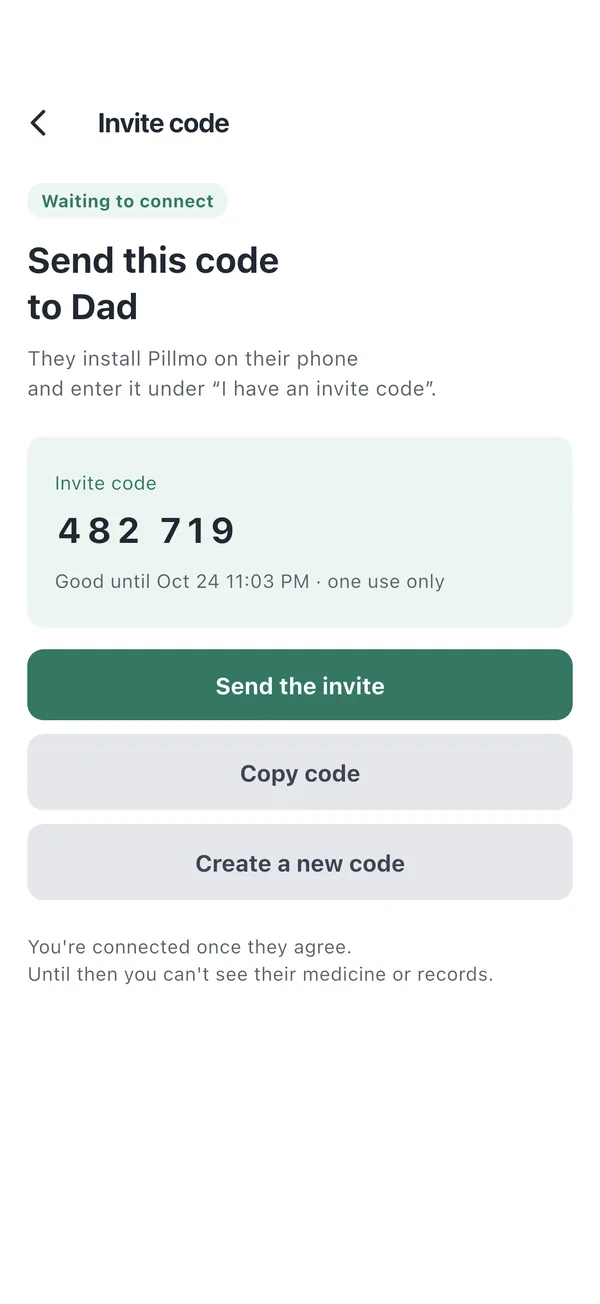
Send the invite code
You get a six-digit invite code. Tap [Send the invite] to send the code with an install link by text or any messaging app. You can also just read the numbers out over the phone.
- The code works until the time shown, and only once. After that, tap [Create a new code].
- When your family member connects, this screen changes to “Connected”.
If you were invited
-
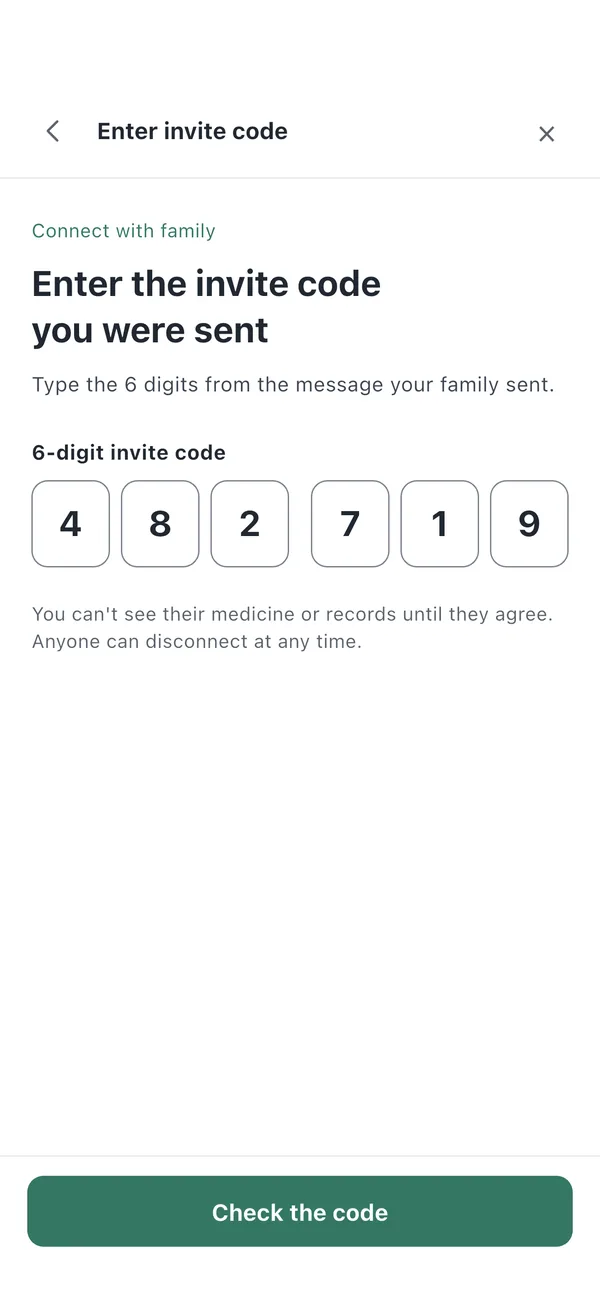
Install Pillmo and enter the code
Use the link in the message to install Pillmo from Google Play. On the first screen, tap “I have a family invite code”, enter the six digits and tap [Check the code]. If you installed from the link, the code is already filled in.
You don't need to sign up or make a password.
-
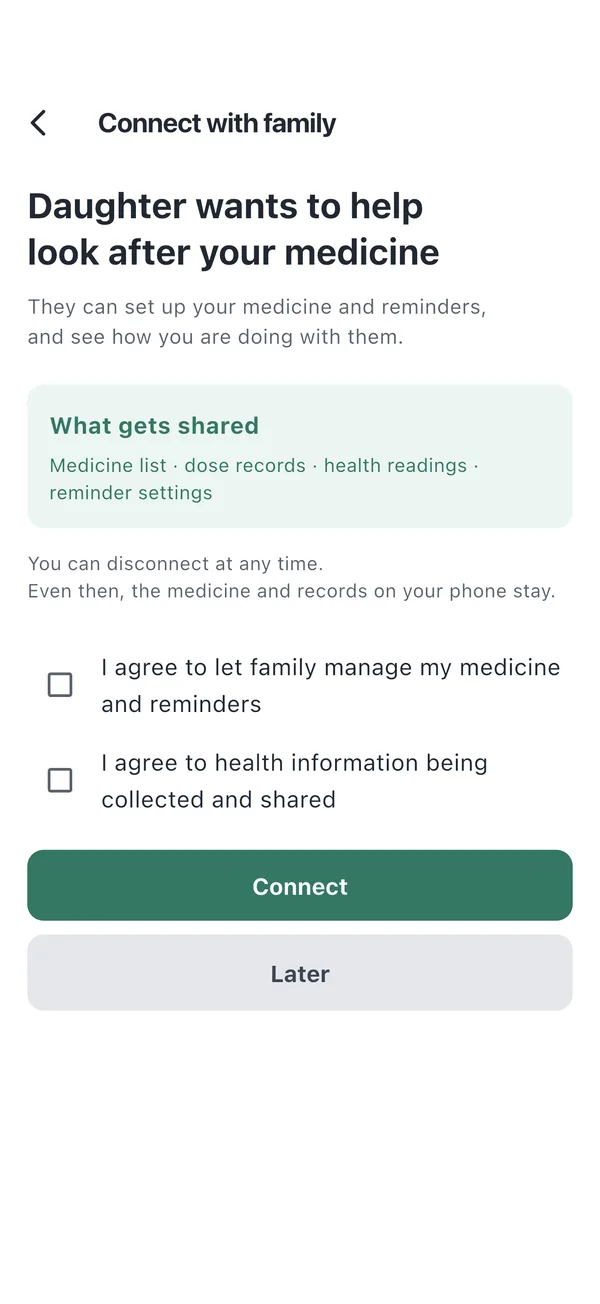
Check what gets shared, then connect
See who will see what. With Look after them, your family sees your medicine list, dose records, health readings and reminder settings. With Share with each other, you choose how much to show here: just whether you took it, medicine names too, or your records too.
Tick both boxes and tap [Connect]. That's it.
Once you're connected
-
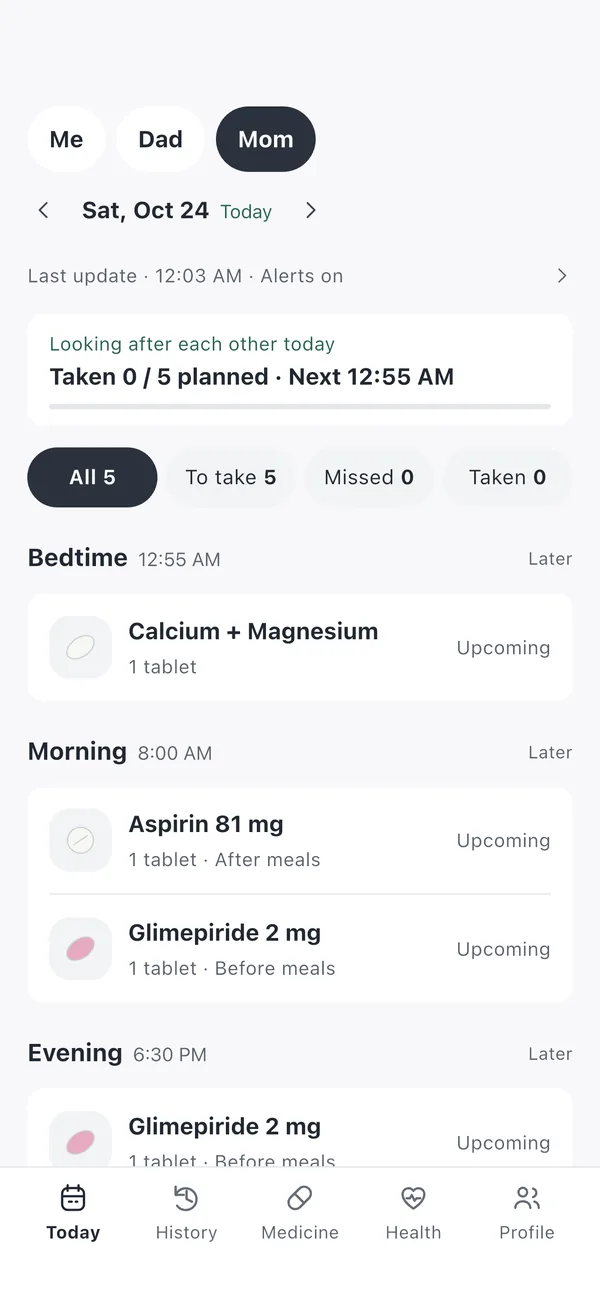
See your family member's day
Tap their name at the top of the Today tab to see their Today. Medicines they've taken show when they took them, and the top shows the last update and whether reminders are on for their phone.
With Look after them, you can add and edit their medicine too (Profile › their name › [+ Add medicine]). Reminders ring on their phone.
-
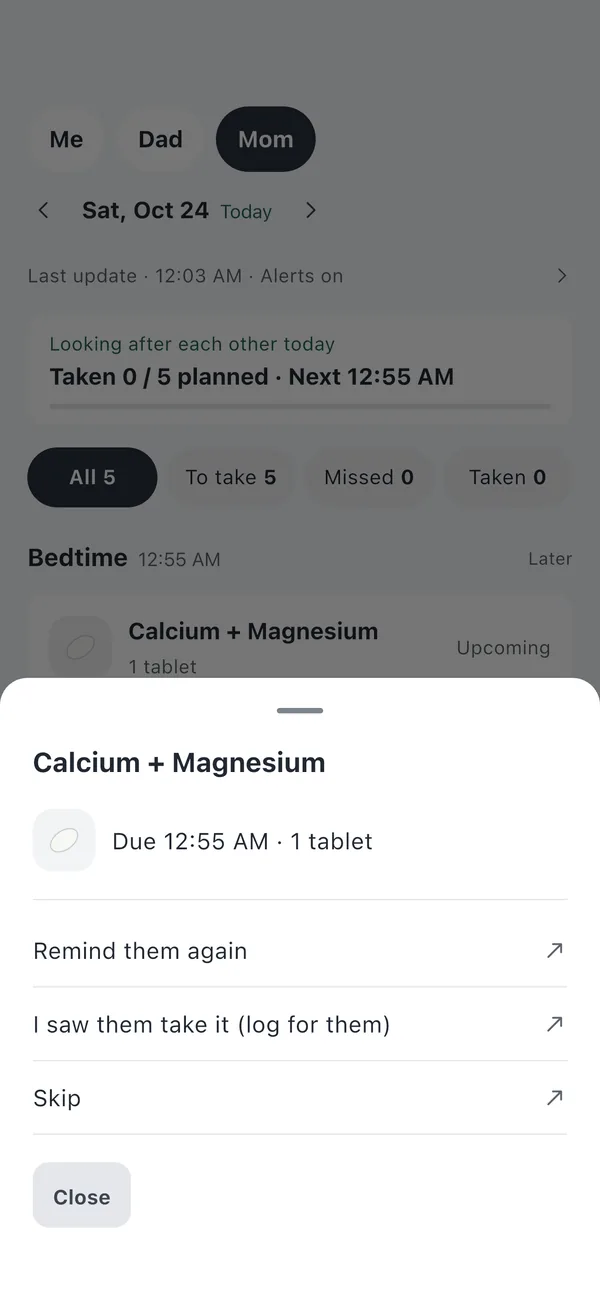
Remind them if they haven't taken it
Tap a medicine they haven't taken and choose [Remind them again] to send another reminder to their phone (once every 10 minutes). If you've checked by phone that they took it, log it for them with [I saw them take it].
-
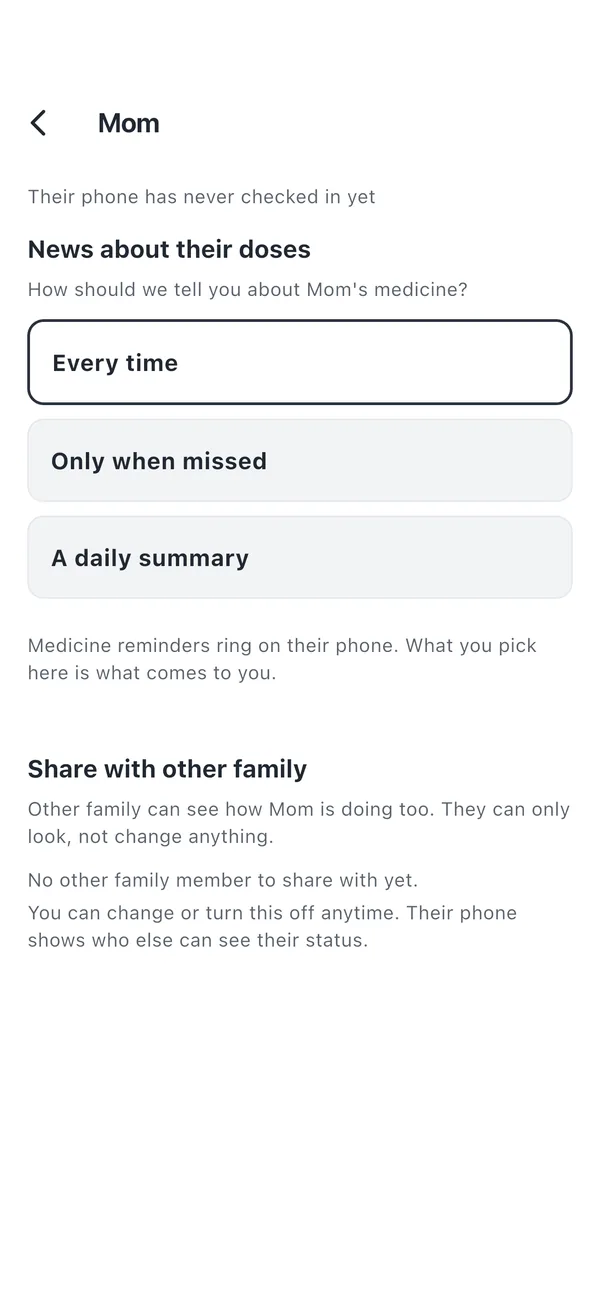
Choose how you hear about their doses
In Profile › their name › Alerts and sharing, choose how you get news about their doses.
- Every time: we tell you each time they take a medicine.
- Only when missed: we tell you only when they miss one.
- A daily summary: one summary of the day in the evening.
Disconnecting and cancelling
- To disconnect, go to Profile › their name › Remove from family. Your family member can disconnect any time too.
- Cancel your subscription any time in Google Play › Payments & subscriptions. You can keep using it until the end of the period you paid for.
- When the subscription ends, connected family and records stay. Only new invites and family alerts (missed doses, daily summary, reminding them again) stop.
- What's shared with family and how long it's kept is in section 8 of the privacy policy.
6. Moving to a new phone
On your old phone, go to Profile › Settings › My data and tap Create a backup file. Install Pillmo on the new phone and tap Restore from a backup in the same place. You can also export your records as CSV. Photos you took for your medicines aren't in the backup, so choose them again.
Any other questions? Email signalnow.app@gmail.com, or use Settings › Send feedback in the app.